Write a cover letter
Start a letter for a job, write it yourself or have a draft written, rewrite one part, mark it reviewed and export a PDF.
By the end of this article you have a cover letter you have read, checked and exported.
Start a letter
Open the job and select the Cover letter step. Or select Cover Letters in the side panel, choose a Job and a Résumé, and select New letter.
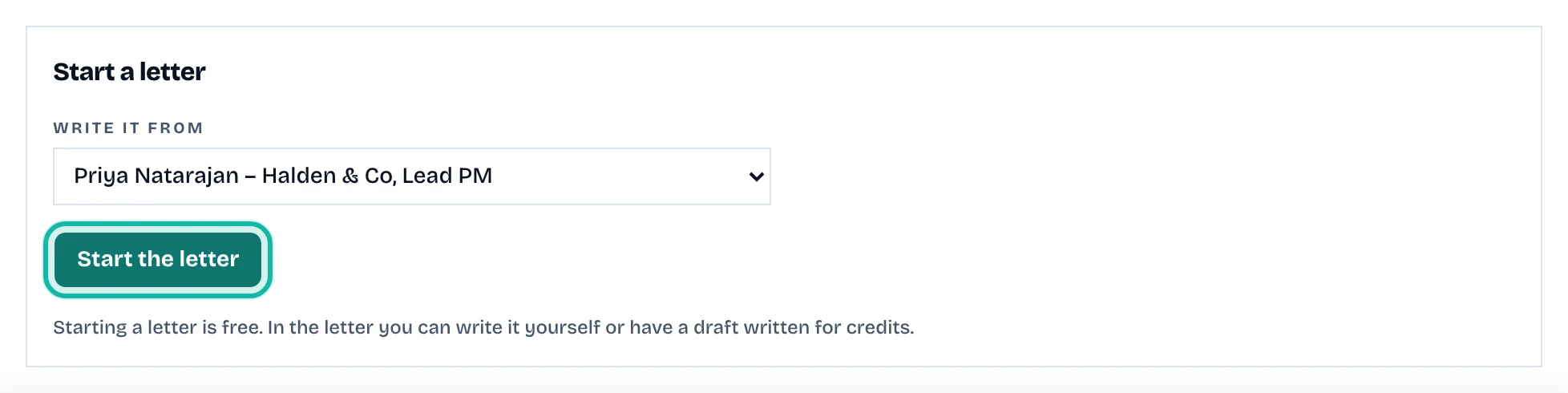
Under Write it from, choose the résumé, then select Start the letter. Starting is free.
Write it
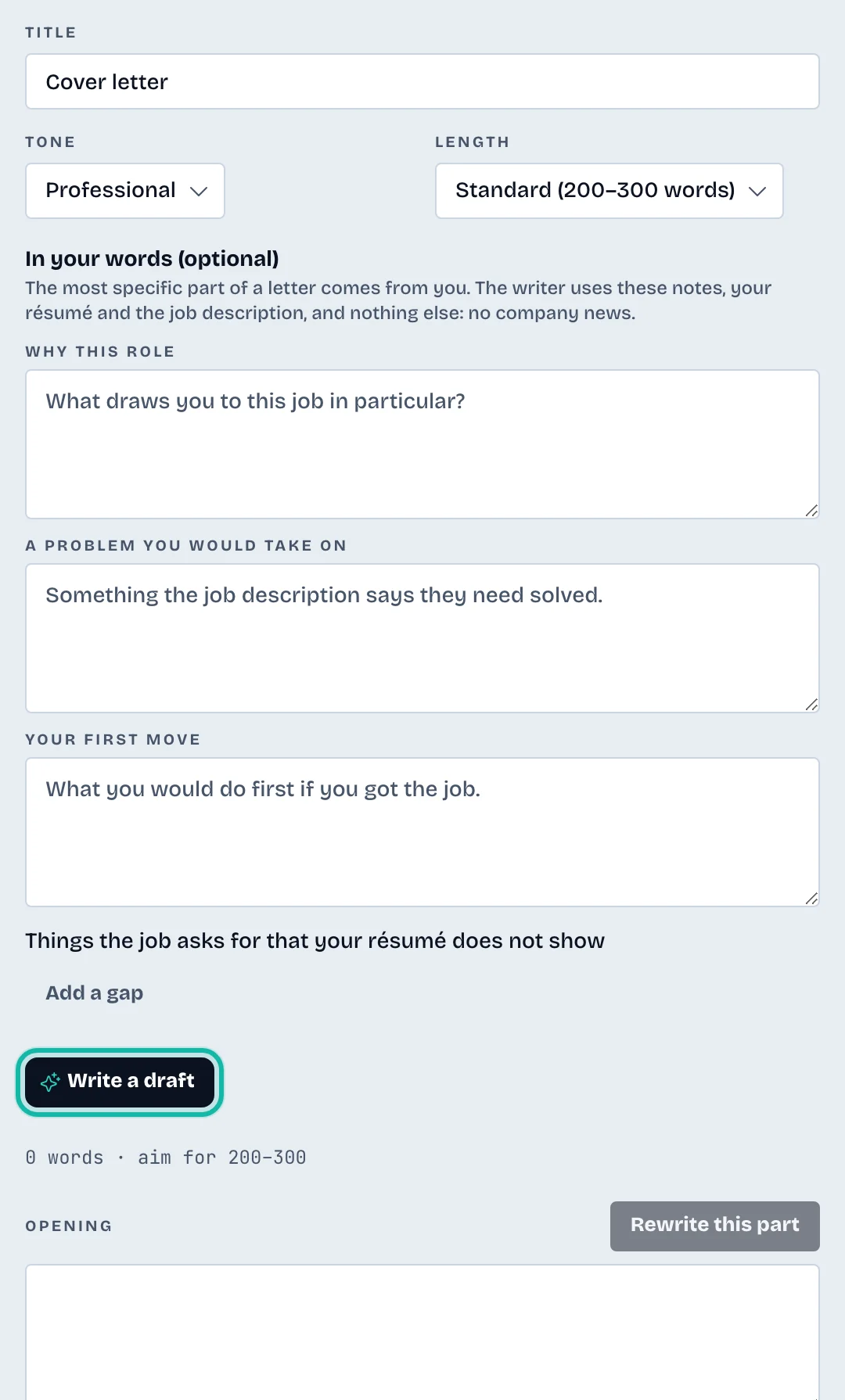
Pick a Tone: Professional, Warm or Direct. Pick a Length: Standard (200–300 words) or Short (120–180 words).
To have a draft written, select Write a draft. It uses credits.
Or type in the four parts: Opening, Why you fit, A second example and Closing.
Under In your words (optional), add Gap items the job asks for that your résumé does not show, and choose how the letter treats each: Address it honestly, Leave it out or My own angle.
To redo one part, select Rewrite this part. Select Write it again for the whole letter; Replace the text confirms, and the old text stays in history.
Select Save changes.
Review and export
Read the letter and check every claim is true.
Select I have read this letter. It marks the letter Reviewed.
Select Export PDF. An AI draft can be exported only after you mark it reviewed.
Select History to see earlier versions, and Use this text to load one into the editor.
What if…
It says "Link a résumé and a job to write this letter with AI"? Choose both and select Link.
It says the letter may be out of date? You changed your résumé or the job after writing it. Rewrite it or check each part.
The reviewed mark went away? The text changed. Read it and mark it reviewed again.
Unsaved edits stop the draft button? Select Save changes first.
The Free plan? It includes one cover letter. See Understand credits and plans.