Add a job from a link or pasted description
Save a job you found elsewhere by link, or by pasting its text, and manage it in My jobs.
By the end of this article a job you found anywhere is saved in My jobs, with its description, ready for a fit check.
Add a job
Select My jobs in the side panel, then Add a job. In Find jobs, the button is Add a job from a link.
Under Link to the posting, paste the address and select Read the link. Greenhouse, Lever, Ashby and most public job pages work.
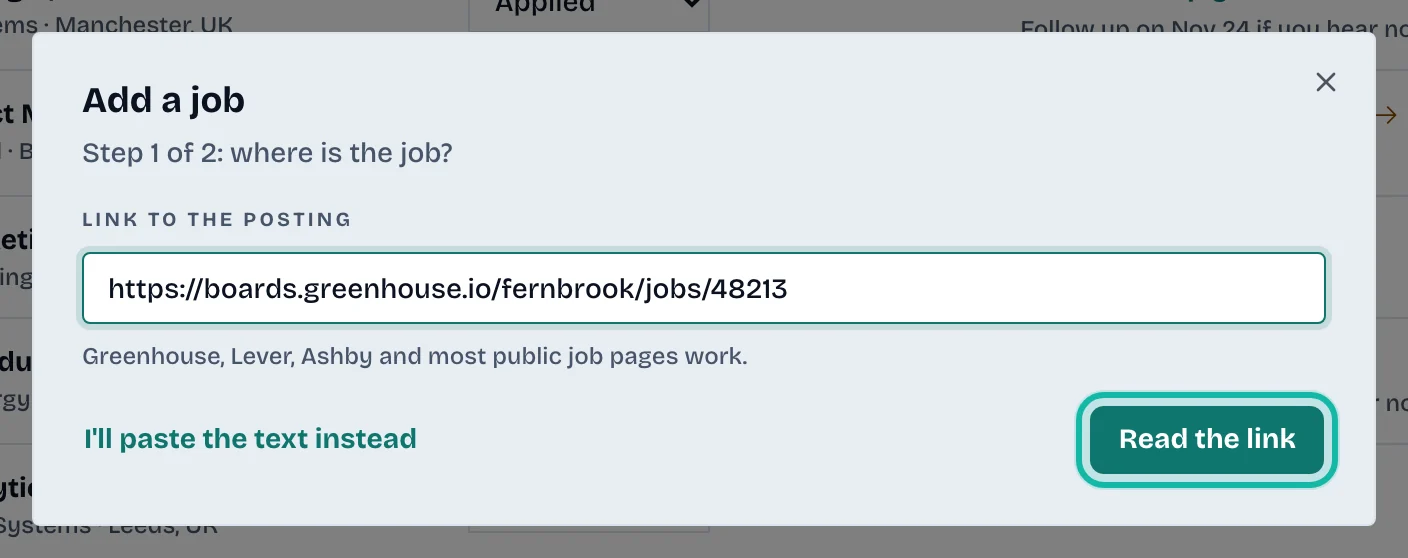
If the link cannot be read, select I'll paste the text instead.
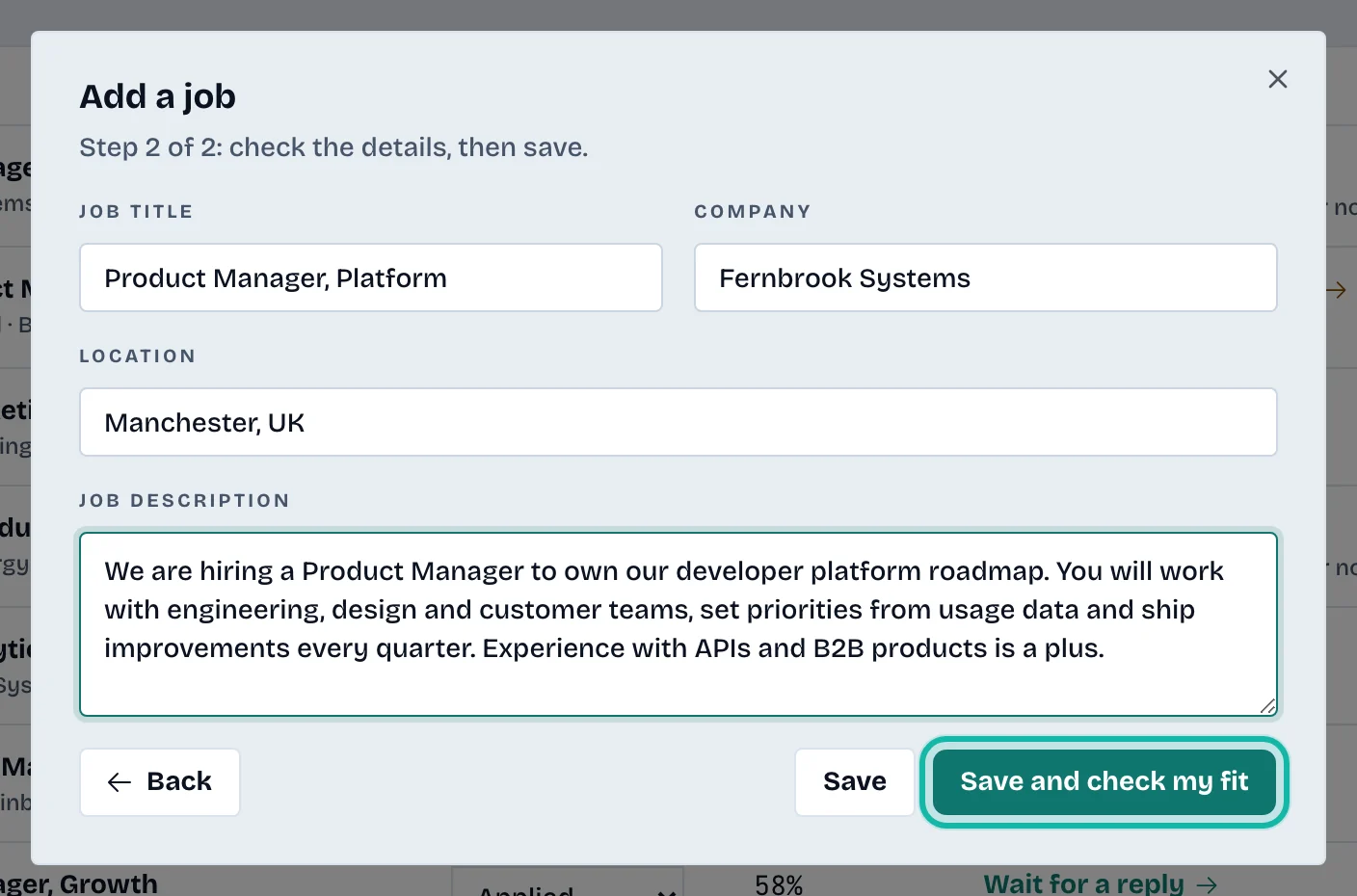
At step 2, check Job title, Company, Location and Job description. Paste the whole posting, including requirements.
Select Save, or Save and check my fit to go straight on.
Work with your jobs
Use the status buttons, such as All active, to filter. Each shows a count.
Type in Filter by title or company.
Switch between Board and Table. The table lists Job, Status, Fit and Next step.
Change the status with Move to in the board, or on the job's page. Statuses are Saved, Applied, Interviewing, Offer, Rejected, Withdrawn and Archived.
Select Delete to remove a job.
Select a job to open its six steps: Overview, Fit, Tailor résumé, Cover letter, Apply and track and Interview prep. Use Next and Back to move through them.

What if…
It says I read many links this hour? Paste the job text instead.
It says I saved the job before? It opens as you saved it. Changes made in the dialog were not kept.
The description was shortened? Descriptions over 20,000 characters are cut.
I don't know if the posting is open? The Overview step says Posting looks open, Posting may be closed or Not sure the posting is still open.