Save a tailored copy for a job
Save the fixes you chose as a separate copy linked to the job, check what changed, and open it in the editor.
By the end of this article you have a separate copy of your résumé for one job. The original stays as it was.
Save a copy from the Fit step
After you choose fixes in Check your fit and fix the gaps, look at Your tailored copy. It lists Your fixes and, under Key skills in the job, what they add.
Select Save tailored copy. The button is disabled until you accept a fix or add a skill.
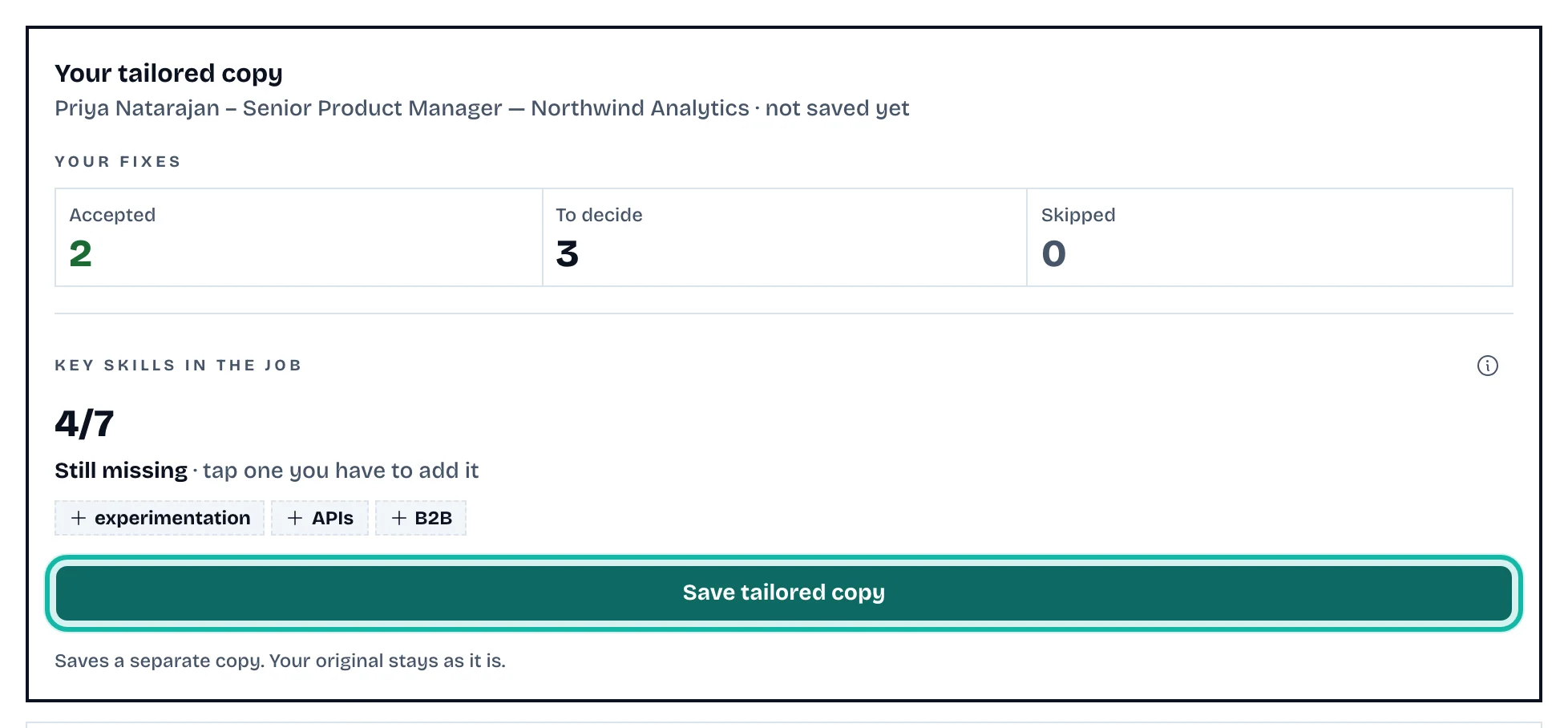
The panel then reads Saved: with the copy's name. Select Next: cover letter, or Open in the editor.
The copy is linked to the job, so the cover letter and interview steps use it.
See and rename your copies
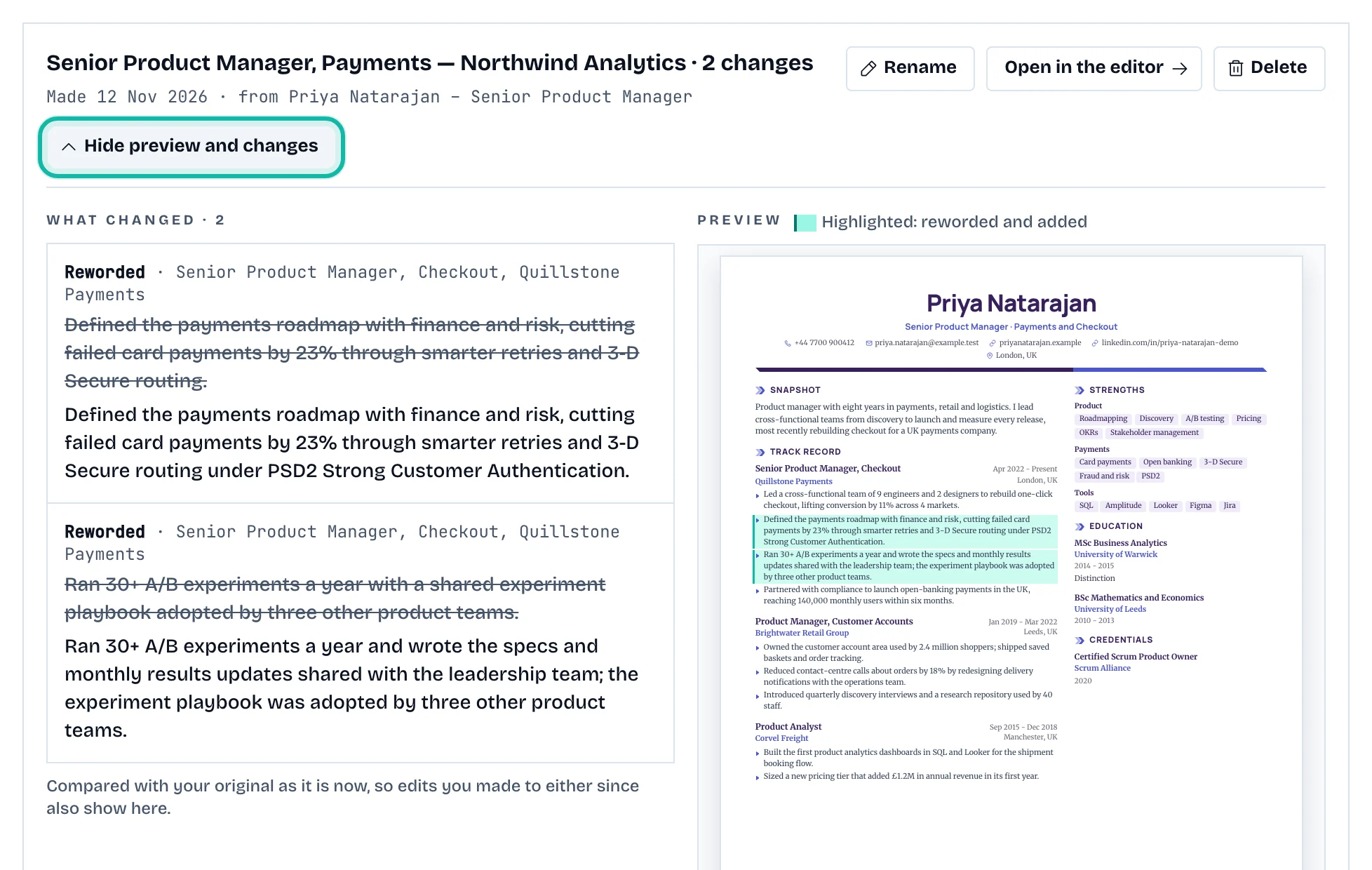
Open the Tailor résumé step. The title is Your tailored copies.
Select Preview and what changed. Lines marked Reworded, Added or Removed show the difference from your original.
Select Rename to change Name of this copy, or Open in the editor to adjust it.
Tailor for a job that is not saved
Open the résumé and select Tailor in the editor header.
Fill Job title, Company and Job description, then select Analyze job.
Tick the proposed changes you want and select Create variant with changes.
For a job you saved, use its Fit step instead.
What if…
It says no tailored copy yet? Copies are made in the Fit step. Select Back to go there.
There are no safe changes? You can still select Create an unchanged copy… and edit it by hand.
The Free plan? It includes one tailored copy. See Understand credits and plans.
I want to delete a copy? See Manage My résumés, or delete it on the Tailor résumé step.