Share a résumé with a coach
Connect with your coach from their invitation, then share one résumé and ask for a review.
By the end of this article your coach can open one résumé of yours to view and comment on it. Your jobs, letters, interview answers and payment details stay private, and your credits and plan stay your own.
Connect with your coach
You connect once, from the invitation your coach sends.
Open the invitation link from your coach's email. If you are signed out, sign in or create a personal account and you return to the link.
Read What joining means. Your coach can see only the résumés you choose to share, and you can stop sharing at any time.
Select Connect with and your coach's name.

Share a résumé
Open the résumé you want to share.
In the editor header, select Share with coach. You see this button on a tablet or computer, and only once you have a coach.

If you have more than one coach, choose one under Coach.
Optionally write a note in Optional note for your coach.
Select Share, or Share & request review to ask your coach to look at it.
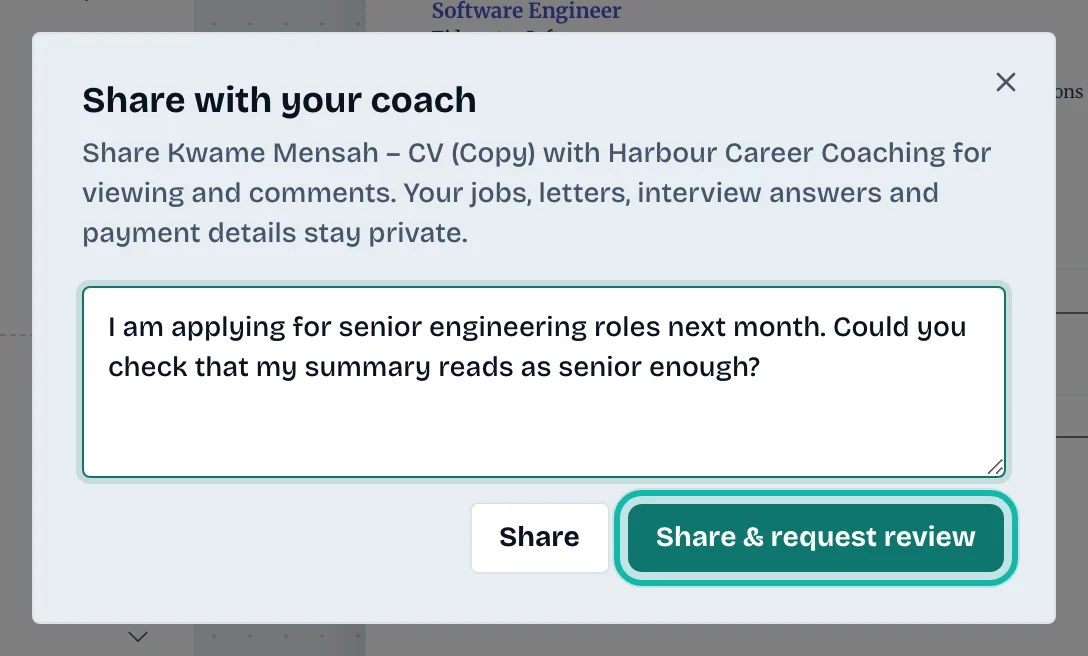
The dialog shows a badge: Shared, Review requested or Review complete. To ask again later, open the dialog and select Request a review.
When your coach leaves comments, see Accept or reject a coach's suggestions.
What if…
I cannot find Share with coach? You need an accepted invitation, and you must be in the editor of your own résumé.
It says I already share another résumé? Only one résumé can be shared with a coach at a time. Stop sharing it first. See Stop sharing with a coach.
The link says it cannot be used? It is used, cancelled or expired. Ask your coach for a new one.
It says the invitation needs a different account? Coaching clients use a personal account. Sign out and open the link with your personal account.