Track applications and set reminders
Mark a job as applied, keep the résumé and letter you sent, add notes and set reminders that appear in the app.
By the end of this article your application is tracked: you know what you sent, what is next, and when to follow up.
Mark a job as applied
Open the job and select the Apply and track step.
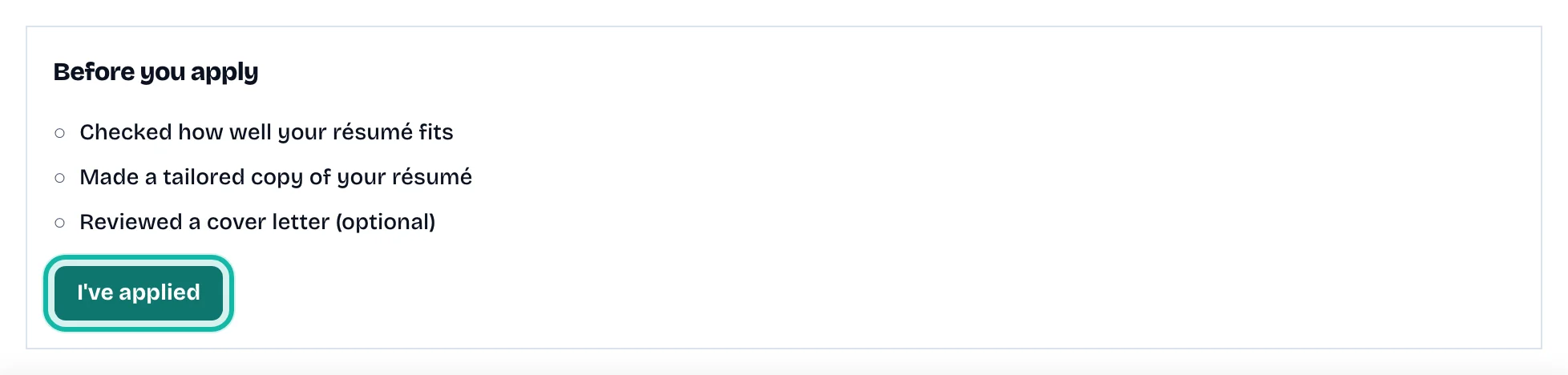
Under Before you apply, the checklist shows whether you checked your fit, made a tailored copy and reviewed a cover letter (optional).
Select Open the posting to apply and apply on the employer's site.
Come back and select I've applied.
The résumé and letter you linked are saved as copies of what you sent. You find them under What you sent, with View the copy.
Keep the record up to date
On the same step, with Your application showing:
Change the Status at the top of the job: Saved, Applied, Interviewing, Offer, Rejected, Withdrawn or Archived. Any status can move to any other.
Pick Résumé used and Cover letter used, and set the Interview date when you have one.
Write in Notes and select Save notes.
Read Next step for a suggestion, such as when to follow up.
Read History for every change.
Set a reminder
Under Reminders, type what you want in Remind me to, for example "Follow up with the recruiter".
Choose a date and time under When.
Select Add reminder.

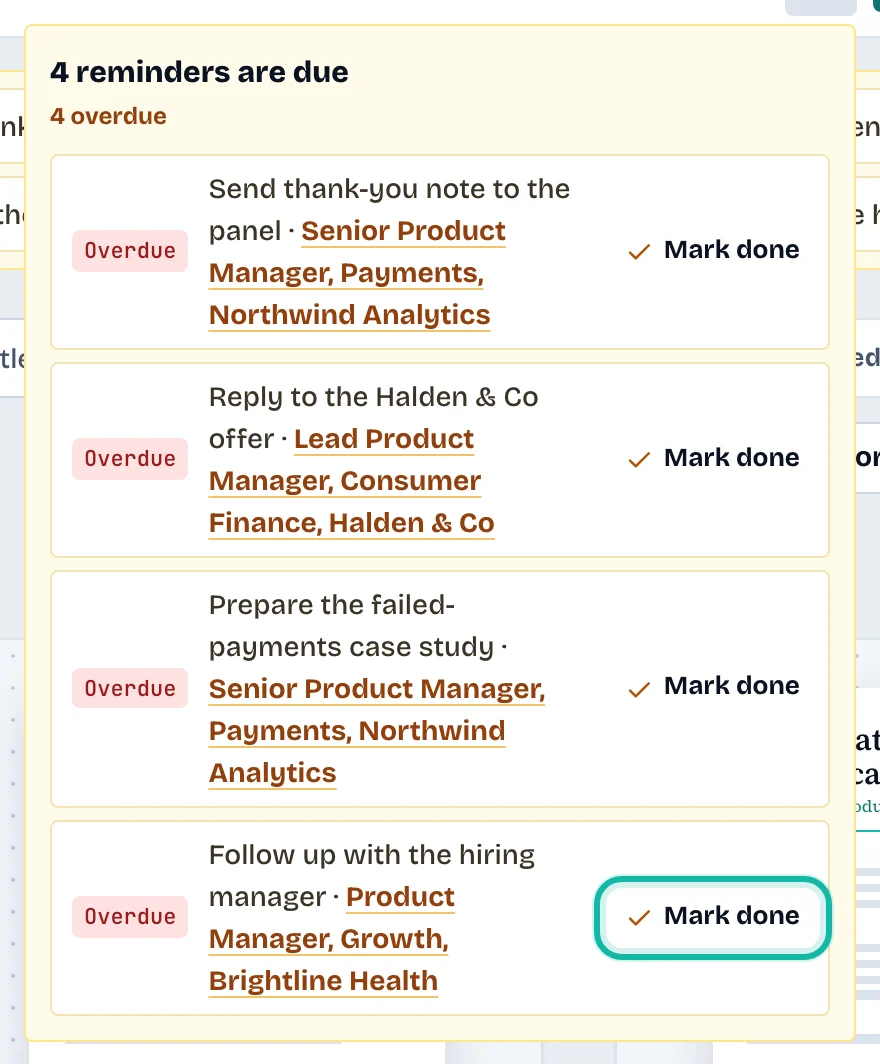
When the time passes, the bell in the top bar shows how many are due, and the card on My Resumes lists them. Select Mark done to clear one. On a reminder in the job, select Done or Cancel.
What if…
It says no copies were saved? No résumé or letter was linked when you marked it Applied. Link them and the next change saves them.
The résumé I used was deleted? Its saved copy went with it. A warning says so.
It says the application changed in another tab? It reloads; try again.
I want the board view? See Add a job from a link or pasted description.