Track reviews and overdue deadlines
Give each review an owner and a due date, and see what overdue means and where late reviews show up.
By the end every review has an owner and a deadline, and you know where late ones appear.
Set an owner and a due date
Open the review from Reviews or Clients.
In the Owner and deadline box, choose the Owner. The list holds your team members and Unassigned.
Choose a Due date.
Select Save.
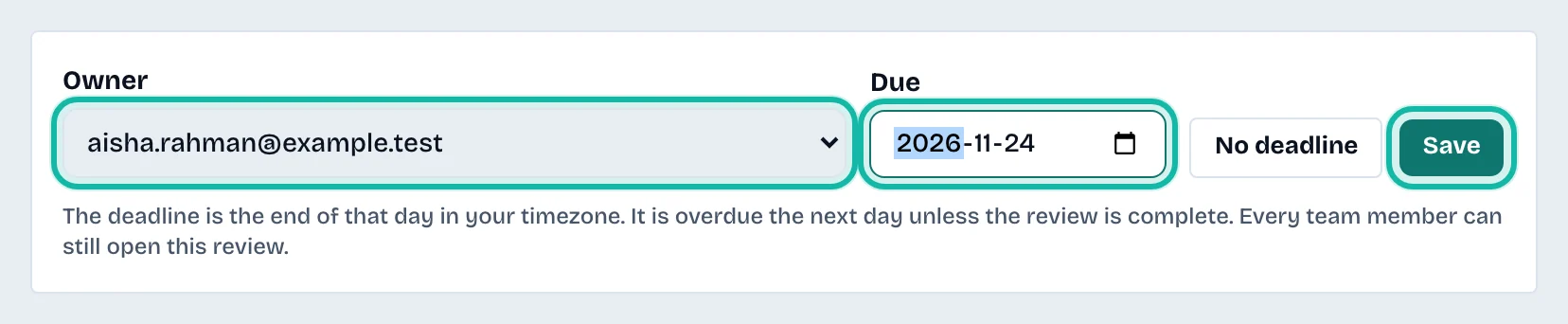
Select No deadline to remove a due date.
Owners and admins can assign a review to anyone. Staff can take an unassigned review or give up their own, but cannot move a colleague's review. Every team member can still open it.
What overdue means
A review is Overdue when its due date has passed and it is not marked complete. The deadline is the end of that day in your timezone, so a review due today is overdue tomorrow. A completed review is never overdue.
Where to see late reviews
The Overdue tile on the Dashboard.
The bell, for overdue reviews assigned to you. See Find your way around the dashboard.
The Overdue filter on Clients, and the red Overdue badge on a row.
What if…
The Overdue tile shows a dash? No review has a deadline yet, so overdue does not apply.
My changes were refused? Someone else saved the review first. The page reloads with the saved values; make your change again.